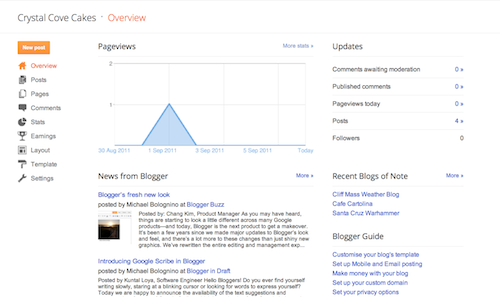
Once you've signed in to Blogger, you'll see your dashboard with your list of blogs. Here's what you need to do:
- Click the orange pencil icon to write a new post, and enter anything you want to share with the world.
-
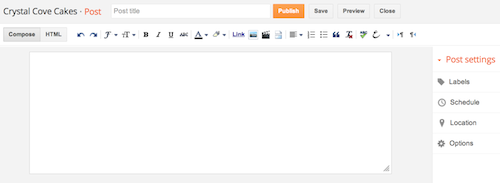
Next, you'll see the Post Editor page. Start by giving your post a title (optional), then enter the post itself:
-
When you're done, click the Preview button at the top to make sure it's ready to go, and then click the Publish button to publish your post.
Back to top
Add an image
You can add an image from your computer or the Web to your blog.
Click the image icon in the Post Editor toolbar. A window appears
prompting you to browse for an image file on your computer, or enter the
URL of an image on the Web.
Once you've selected your image, you can then choose a layout to determine how your image will appear in your post:
- The 'Left', 'Center', and 'Right' options allow you to customize the way your blog text will flow around your image.
- The 'Image size' options will determine how large the image will appear within your post.
Click
UPLOAD IMAGES to add your image, and then click
DONE
when the notification window appears telling you that 'Your image has
been added.' Blogger will then return you to the post editor, where
you'll see your image ready to be published to your blog.
You can also publish images to your blog using your mobile device, Google's free photo software
Picasa, or a third-party service like
flickr.
Back to top
Add a video
To add a video to your blog post, click the film strip icon in the
Post Editor toolbar above where you compose your blog text. A window
appears prompting you to 'Add a video to your blog post.'
Click
Browse to select the video file from your
computer that you'd like to upload. Note that Blogger accepts AVI, MPEG,
QuickTime, Real and Windows Media files and that your video must be
less than 100MB in size.
Before uploading your video, add a title in the 'Video Title' box
and agree to the Terms and Conditions (you'll only have to do this the
first time that you upload a video with Blogger). Then click
UPLOAD VIDEO.
While your video uploads, you'll see a placeholder in the post
editor showing where your video will appear. You'll also see a status
message below the post editor letting you know that your upload is in
progress. Depending on the size of your video, this usually takes about
five minutes. When it is complete, your video will appear in the post
editor.

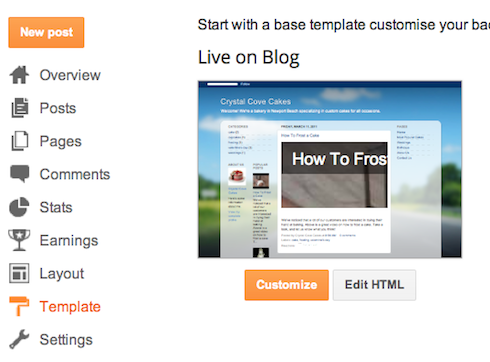 Once on the Template tab, you can either click on the orange Customize
button to get started with our easy-to-use WYSIWYG (“What you see is
what you get”) template designer, or choose one of our many default
templates. If you’d like to edit the HTML of your blog, just click the
gray Edit HTML button.